

How to Change Chat Themes in Pageinar
Knowing how to change chat theme in Pageinar lets you match the chat panel style to your event brand in just a few clicks. Pageinar offers multiple visual themes you can switch at any time from the Chat Settings panel — no code required.
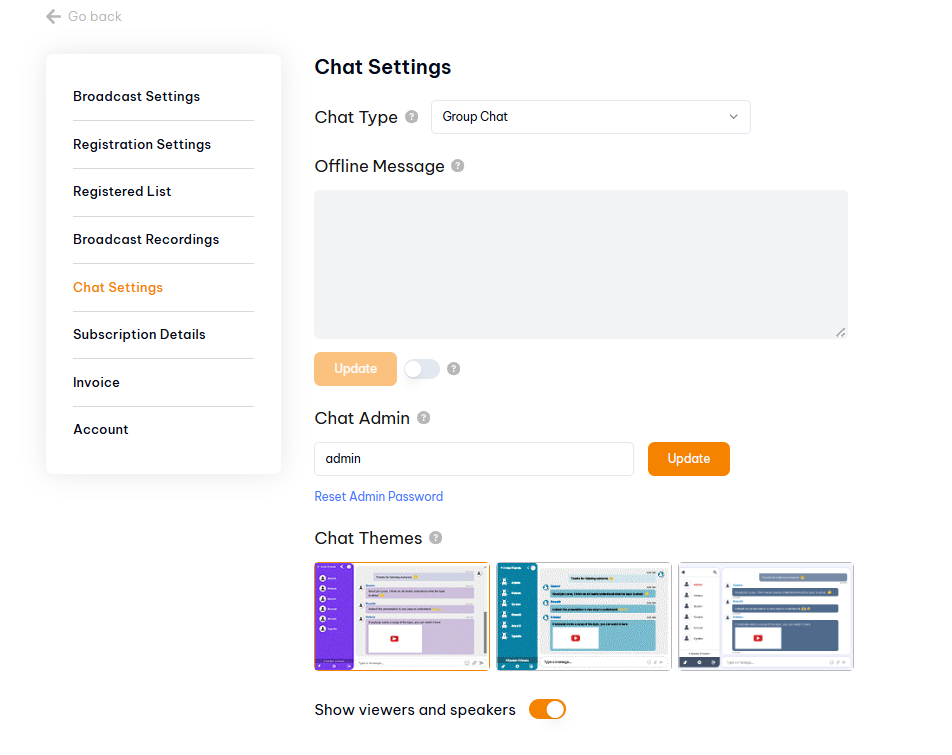
How to Change Chat Theme in Pageinar: Step-by-Step
- Log in to your Pageinar account at pageinar.com.
- On your broadcast page, click the gear icon in the top-right corner to open Settings.
- Select Chat Settings from the left menu.
- Scroll down to the Chat Themes section.
- Click any theme thumbnail to apply it. The change saves automatically.
What Else You Can Configure in Chat Settings
While you are in Chat Settings, you can also set an offline message (shown when your broadcast is not live), assign a chat admin, and toggle whether viewers and speakers are displayed in the chat panel. These options give you full control over how attendees experience the chat during your webinar.
Tip: Choose a theme that contrasts well with your cover image color for the best visual result on your broadcast page.
Open the Settings panel via the gear icon, go to Chat Settings, and scroll down to Chat Themes. Click any theme thumbnail to apply it instantly.
Pageinar offers multiple visual chat themes with different color schemes and layouts. You can preview and switch between them at any time from Chat Settings.
Yes. The chat theme is visible to all attendees on your webinar page. Changes apply immediately once selected.
It is recommended to set your chat theme before going live. Changes during a broadcast may briefly refresh the chat panel for attendees.
Click the gear icon on your Pageinar broadcast page to open the Settings panel, then select Chat Settings from the left menu.