
How to Cancel Your Pageinar Subscription
You can cancel your Pageinar subscription at any time directly from the Subscription Details panel in Settings — your plan stays active through the end of the current billing period and your data is not affected.
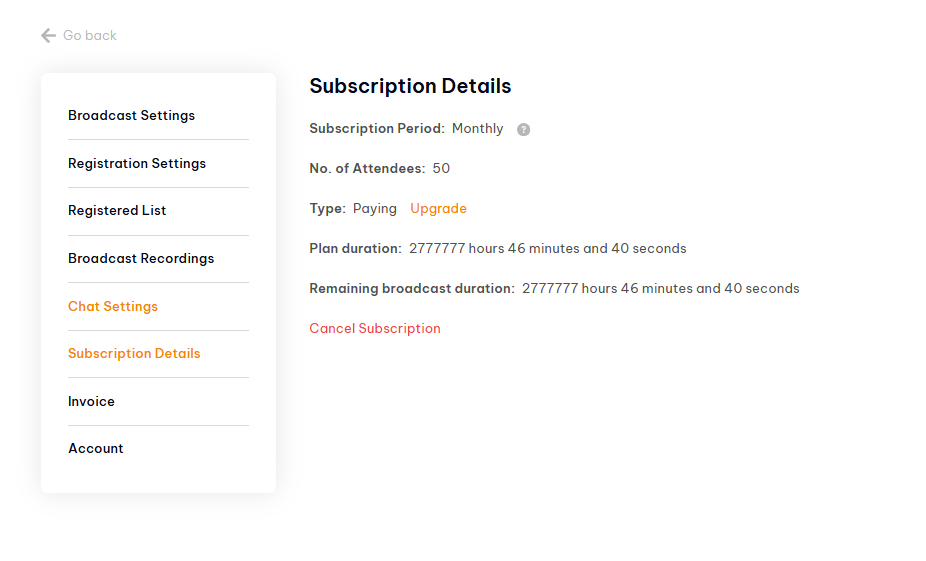
How to Cancel Your Pageinar Subscription: Step-by-Step
- Log in to pageinar.com.
- Click the gear icon on your broadcast page to open Settings.
- Select Subscription Details from the left menu.
- Review your current plan and remaining duration.
- Click Cancel Subscription to cancel at the end of the billing period.
What Happens After You Cancel Your Pageinar Subscription
After cancelling, your paid plan remains active until the billing period ends — you will not lose access immediately. Once the period expires, your account reverts to the free plan. Your broadcast page, registered list, and recordings are not deleted. If you decide to come back, click Upgrade in Subscription Details to reactivate a paid plan at any time.
Tip: Before cancelling, export your recordings and registration list from Settings to make sure you have a local copy of all your event data.
Go to Settings → Subscription Details and click Cancel Subscription. Your plan stays active until the end of the current billing period.
Your subscription remains active until the end of the current billing period. After that, your account reverts to the free plan with its default attendee and duration limits.
No. Cancelling your subscription does not delete your page, recordings, or registration data. You simply revert to the free plan limits.
Yes. You can upgrade your plan again at any time from Subscription Details by clicking the Upgrade link.
Yes. Pageinar processes all payments via PayPal. You can view billing history and transactions in Settings → Invoice.