
How to Manage Your Account Settings in Pageinar
Managing your account settings in Pageinar lets you view your account details and control your broadcast page — access everything from the Account section in the Settings panel.
How to Access Account Settings in Pageinar: Step-by-Step
- Log in to pageinar.com.
- Click the gear icon on your broadcast page.
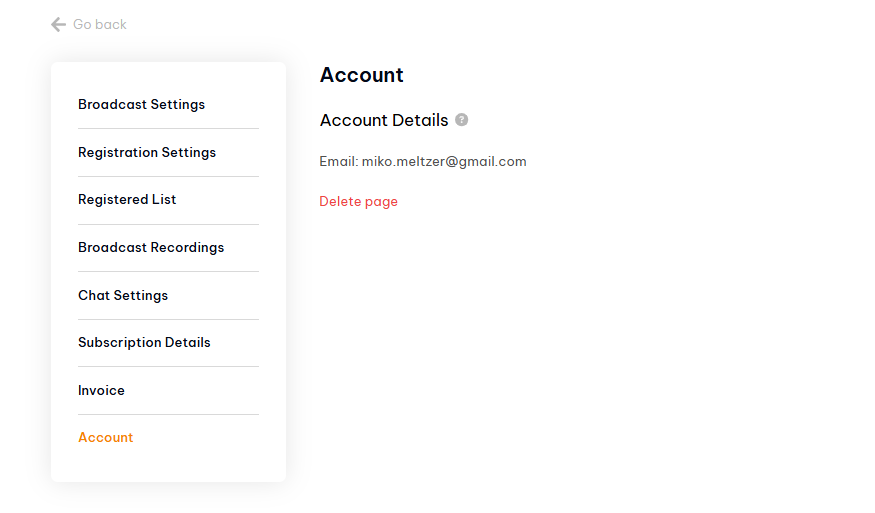
- Select Account from the left menu.
What You Can Do in Account Settings
- View account email — confirms which Google account your Pageinar page is linked to.
- Delete page — permanently removes your broadcast page and all data. This cannot be undone.
- Log out — ends your current browser session.
What You Cannot Change in Account Settings
- Your account email — this is determined by your Google account and cannot be changed within Pageinar.
- Your page URL — Pageinar assigns a permanent URL when your page is created.
Tip: Visit Account settings to confirm which Google account is active before making any major changes like deleting your page.
Click the gear icon on your broadcast page and select Account from the left menu in the Settings panel.
No. Your email is linked to your Google account. To use a different email, you would need to sign in with a different Google account.
Go to Settings → Account. Your account email is displayed under Account Details.
No. Your page URL is assigned automatically when your page is created and cannot be changed.
Logging out ends your browser session but keeps all your data intact. Deleting your page permanently removes the page and all its data.