
How to Understand Your Broadcast Duration in Pageinar
Understanding your broadcast duration in Pageinar helps you plan events within your plan limits — your total and remaining duration are shown in Subscription Details.
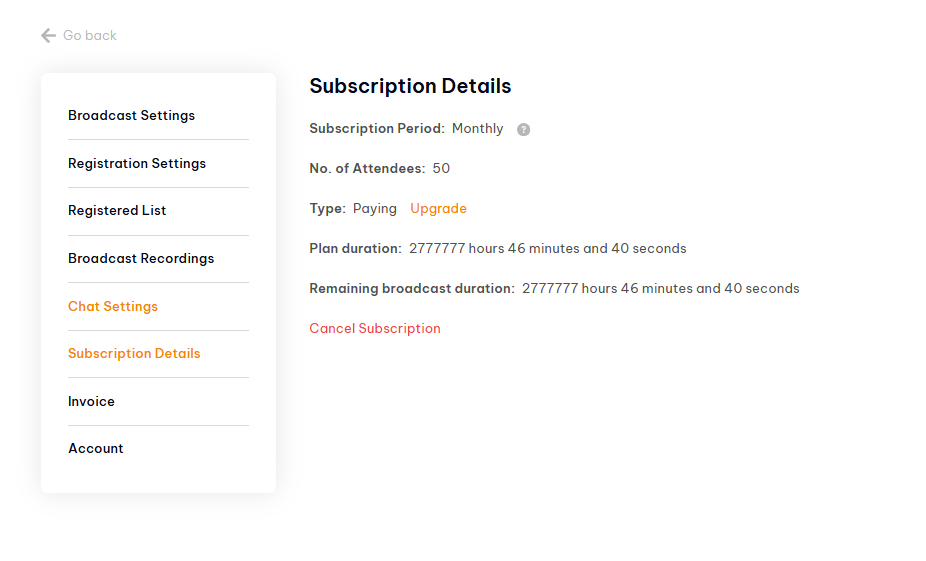
How to Check Your Broadcast Duration: Step-by-Step
- Log in to pageinar.com.
- Click the gear icon → Subscription Details.
- Find Plan duration — your total allotted broadcast time.
- Find Remaining broadcast duration — how much time you have left.
How Broadcast Duration Works
- Each time you run a live broadcast, the duration is deducted from your plan’s total.
- When your remaining duration reaches zero, you cannot start new broadcasts until you upgrade.
- Upgrade your plan to add more broadcast hours.
- Your recordings do not count against broadcast duration — only live streaming time is deducted.
Tip: Check your remaining broadcast duration before a long event to avoid running out mid-stream. Upgrade in advance if needed.
Broadcast duration is the total amount of live streaming time included in your plan. Each broadcast deducts from this total.
Go to Settings → Subscription Details and look at the Remaining broadcast duration field.
When your remaining duration reaches zero, you cannot start new live broadcasts. Upgrade your plan to add more hours.
No. Only the time you spend actively broadcasting live deducts from your plan’s duration.
Go to Subscription Details and click Upgrade to choose a plan with more broadcast duration. Payment is via PayPal.