
How to Upgrade Your Pageinar Plan
Upgrading your Pageinar plan increases your attendee limit and broadcast duration — click the Upgrade link in Subscription Details to choose a higher plan and complete payment via PayPal.
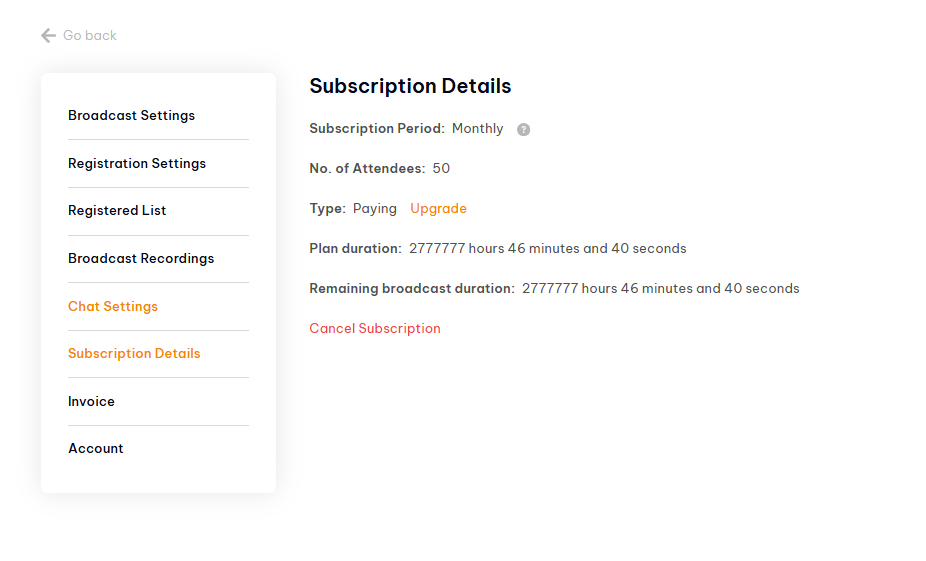
How to Upgrade Your Pageinar Plan: Step-by-Step
- Log in to pageinar.com.
- Click the gear icon → Subscription Details.
- Review your current plan, attendee limit, and remaining duration.
- Click the Upgrade link next to your plan type.
- Select the plan that meets your needs.
- Complete the payment via PayPal.
- Your new plan limits take effect immediately.
What Changes When You Upgrade
- No. of Attendees — increases to your new plan’s limit.
- Broadcast duration — you receive additional hours for live streaming.
- Plan type — changes from Free to Paying, or to a higher paying tier.
Tip: If you are upgrading for a specific event, do it at least 24 hours in advance to confirm the payment has processed and the new limits are active.
Go to Settings → Subscription Details and click the Upgrade link. Select your new plan and complete the PayPal payment.
Yes. Your new attendee limit and broadcast duration are active as soon as the PayPal payment is confirmed.
Yes. You can upgrade at any time. Your new plan starts from the upgrade date.
Pageinar processes plan payments via PayPal.
You can cancel your current subscription and choose a lower plan on renewal. Contact Pageinar support for specific downgrade options.