

How to Search for Registered Users in Pageinar
Searching for registered users in Pageinar is quick and easy — use the search box in the Registered List panel to find any attendee by name or email in seconds.
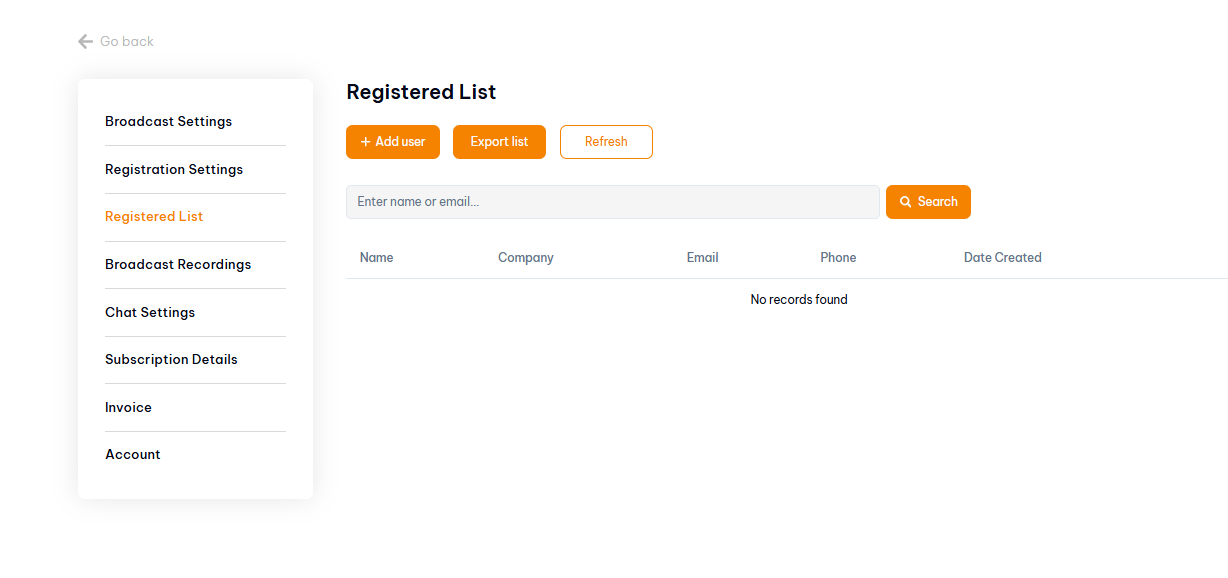
How to Search for Registered Users: Step-by-Step
- Log in to pageinar.com.
- Click the gear icon → Registered List.
- Click Refresh to make sure the latest registrations are loaded.
- Type a name or email in the search box.
- Click Search to filter the results.
Tips for Searching Your Registered Users List
- Search by first name, last name, or email — any of these will filter results.
- If you do not find someone, try a partial name or just the domain part of their email.
- After searching, you can export the filtered results if needed.
- Click Refresh before searching to make sure all recent sign-ups are included.
Tip: Use email search when looking for a specific attendee — it is the most unique identifier and avoids confusion with common names.
Go to Settings → Registered List, type the attendee’s name or email in the search box, and click Search.
The search box filters by name and email. Company-level filtering may require exporting the list and searching in a spreadsheet.
Try a partial name, a different spelling, or just the email domain. Also click Refresh to make sure the latest registrations are loaded.
After filtering with the search box, use the Export list button to download the visible results.
Clear the search box and click Search again, or click Refresh to reload the full unfiltered list.