
How to Manage Viewer Capacity in Pageinar (Attendees Limit)
Managing viewer capacity in Pageinar means checking and adjusting your attendee limit — your current plan defines how many viewers can join your broadcast simultaneously, and you can upgrade if you need more.
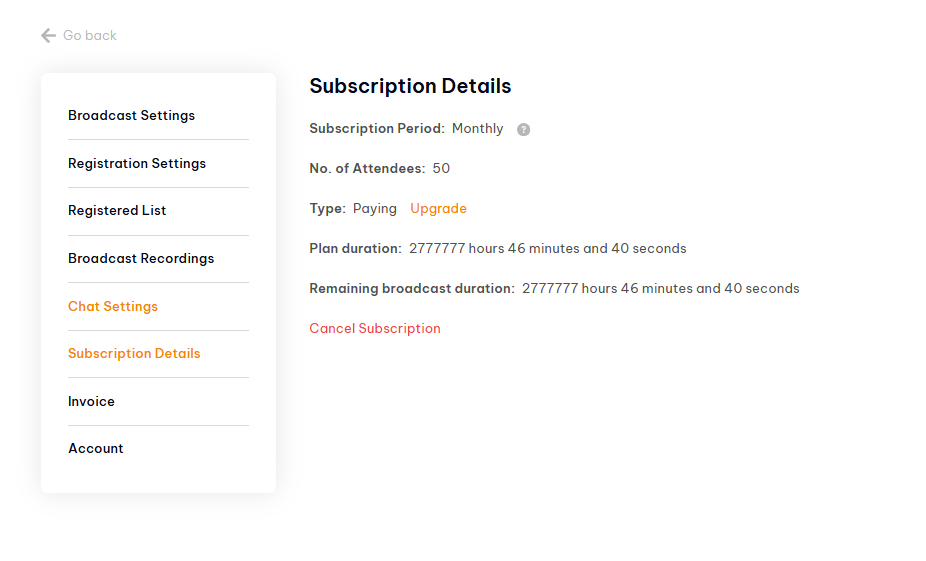
How to Check Your Viewer Capacity (Attendees Limit)
- Log in to pageinar.com.
- Click the gear icon to open Settings.
- Select Subscription Details.
- Check the No. of Attendees field — this is your current viewer capacity.
How to Increase Your Viewer Capacity
- In Subscription Details, click the Upgrade link next to your plan type.
- Select a plan with a higher attendee limit.
- Complete payment via PayPal.
- Your new capacity takes effect immediately.
Tip: Check your attendee limit a few days before a large event to give yourself time to upgrade if needed.
Go to Settings → Subscription Details and look at the No. of Attendees field — this is your current maximum viewer limit.
Viewers beyond your plan limit may be unable to join the broadcast. Upgrade your plan before the event to avoid this.
Go to Subscription Details and click Upgrade. Choose a plan with a higher attendee limit and complete the PayPal payment.
Yes. The free plan has a default attendee limit. Check Subscription Details to see your current limit and upgrade options.
The attendee limit applies to the number of viewers who can watch your live broadcast simultaneously.