

How to Enable Registration for Your Webinar in Pageinar
To enable registration for your webinar in Pageinar, switch your page to Registration Mode — this activates a lead capture form so attendees can sign up before the event goes live.
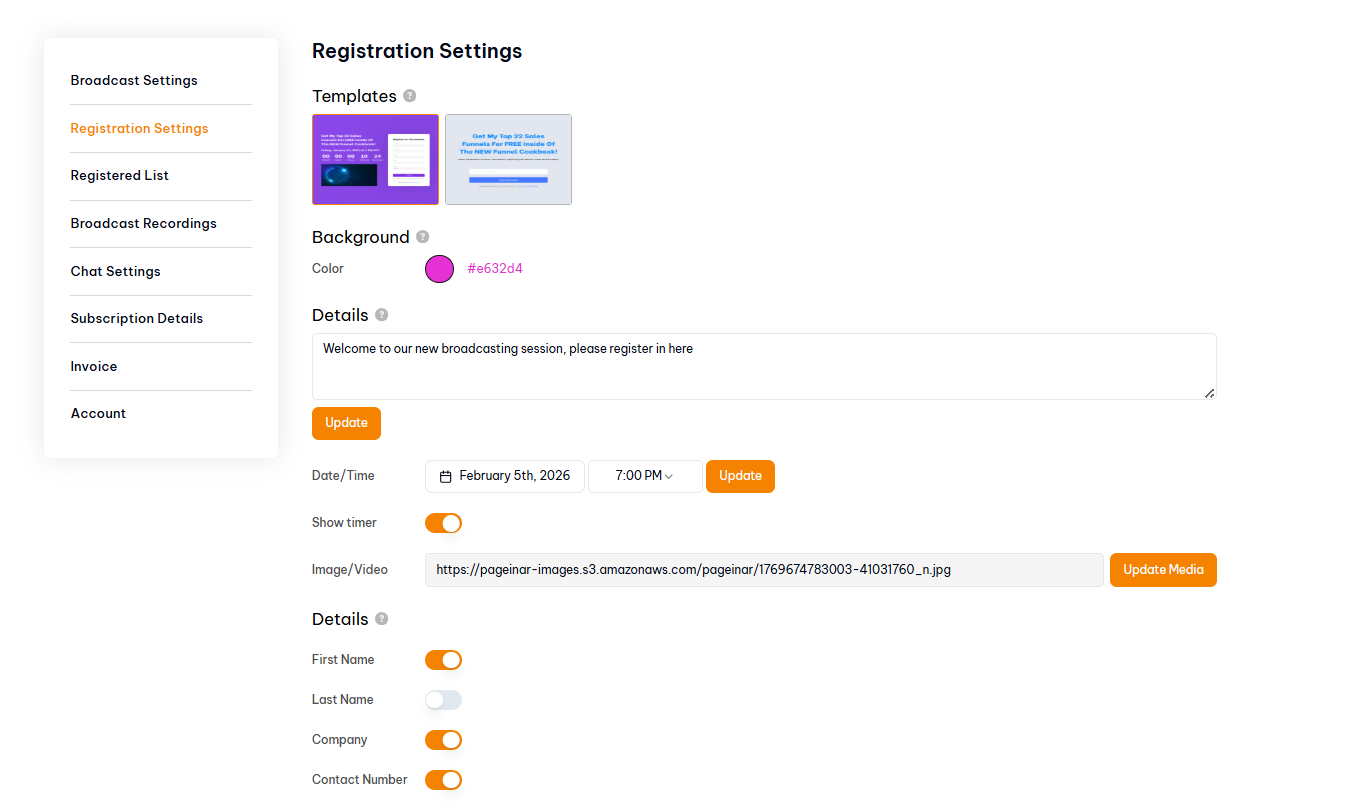
How to Enable Registration for Your Webinar: Step-by-Step
- Log in to pageinar.com and open your broadcast page.
- Find the mode toggle in the top-right corner of the page.
- Switch it to Registration Mode. Your page now shows a registration form to visitors.
- Click the gear icon and go to Registration Settings to configure the form.
- Toggle on the lead fields you want to collect: First Name, Last Name, Company, Phone, or custom fields.
- Set your event Date/Time and optionally enable the Show Timer countdown.
- Add a Welcome Message to greet registrants on the form.
- Share your page URL — visitors will see the registration form instead of the broadcast.
Switching from Registration Mode to Broadcasting Mode
When your event is ready to go live, toggle the page back to Broadcasting Mode using the same top-right toggle. Attendees who visit your URL will then see the live broadcast area instead of the registration form. All leads collected in Registration Mode are saved in Settings → Registered List for export.
Tip: Enable Registration Mode at least a few days before your event to give people time to sign up and build your attendee list.
Switch your page to Registration Mode using the toggle in the top-right of your broadcast page. Then configure Registration Settings to customize the form and collect leads.
You can collect First Name, Last Name, Company, Phone, and custom fields. Toggle each field on or off in Registration Settings to control what appears on the form.
Yes. In Registration Settings you can choose a template, change the background color, add a header image or video, and write a welcome message for attendees.
Go to Settings → Registered List to view all registrants. You can search, add users manually, and export the full list.
Pageinar collects registration data but does not send automated confirmation emails. You can export the list and follow up manually or through your email platform.