

How to View Your Invoices in Pageinar
You can view your invoices in Pageinar directly from the Settings panel — your full billing history is listed by date, transaction ID, amount, and PayPal email, making it easy to track your subscription payments.
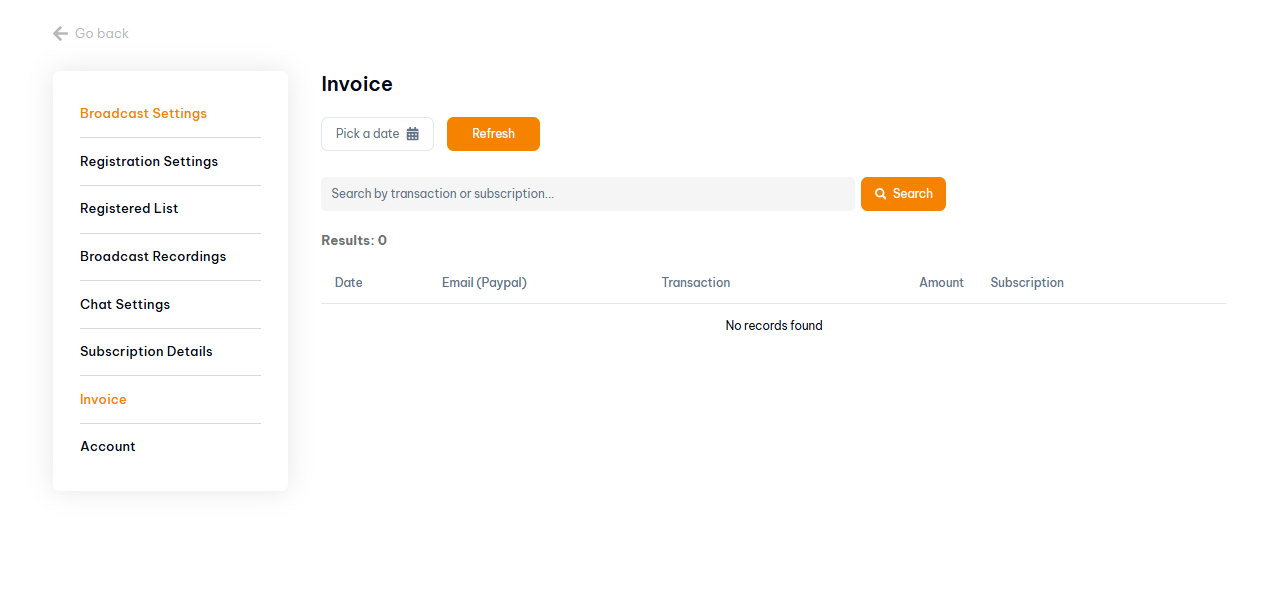
How to View Your Invoices in Pageinar: Step-by-Step
- Log in to pageinar.com.
- Click the gear icon on your broadcast page to open Settings.
- Select Invoice from the left menu.
- Your billing history appears in a table with Date, Email (PayPal), Transaction, Amount, and Subscription columns.
How to Search and Filter Your Invoices
- Search by transaction or subscription — type in the search box and click Search to filter results.
- Filter by date — use the date picker to select a specific date, then click Refresh to show invoices from that period.
Tip: If you need an invoice for accounting purposes, use your browser’s print-to-PDF feature to save a formatted copy of the Invoice panel.
Open Settings from the gear icon on your broadcast page and select Invoice from the left menu. Your billing history is listed by date, PayPal email, transaction ID, amount, and subscription.
In the Invoice panel, use the search box to filter by transaction ID or subscription name. Click Search to display the matching results.
Use the date picker at the top of the Invoice panel to select a date, then click Refresh to show invoices from that period.
Yes. Pageinar processes payments via PayPal. Your invoice records include the PayPal email associated with each transaction.
The Invoice panel displays your billing history on screen. To save a record, take a screenshot or use your browser’s print function to save as PDF.