
How to View Your Subscription Details in Pageinar
You can view your subscription details in Pageinar at any time from the Settings panel — it shows your current plan, attendee limit, and how much broadcast duration remains.
How to View Your Subscription Details in Pageinar: Step-by-Step
- Log in to pageinar.com.
- Click the gear icon on your broadcast page to open Settings.
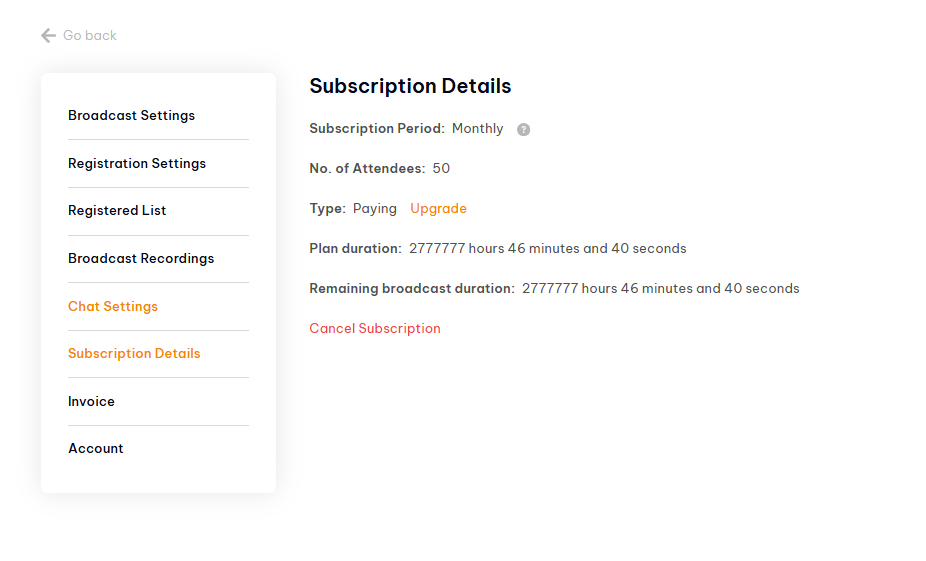
- Select Subscription Details from the left menu.
- Review your plan type, attendee limit, and remaining broadcast duration.
Understanding Your Subscription Details
- Subscription Period — your billing cycle (monthly or annual).
- No. of Attendees — the maximum number of viewers allowed per broadcast.
- Type — Free or Paying. Click Upgrade to move to a higher plan.
- Plan Duration / Remaining Duration — total and remaining broadcast time included in your plan.
- Cancel Subscription — cancels your plan at the end of the current period.
Tip: Check your remaining broadcast duration before scheduling a long event to make sure your plan covers the full session.
Click the gear icon on your broadcast page, go to Settings, and select Subscription Details from the left menu. You will see your plan type, attendee limit, and remaining broadcast duration.
Subscription Details shows your subscription period, number of attendees allowed, plan type (Free or Paying), total plan duration, and remaining broadcast duration.
The No. of Attendees field in Subscription Details shows your current attendee limit. To increase it, click Upgrade next to your plan type.
In Subscription Details, click the Upgrade link next to your plan type. You will be taken to the plan selection page where you can choose a higher tier.
In Subscription Details, click Cancel Subscription. Your plan will remain active until the end of the current billing period.