
How to Start a Live Broadcast in Pageinar
Learning how to start a live broadcast in Pageinar takes just a few steps and requires no external software or plugins. Everything runs directly from your Pageinar broadcast page — your viewers only need the page URL to join.
How to Start a Live Broadcast in Pageinar: Step-by-Step
- Log in to your Pageinar account at pageinar.com.
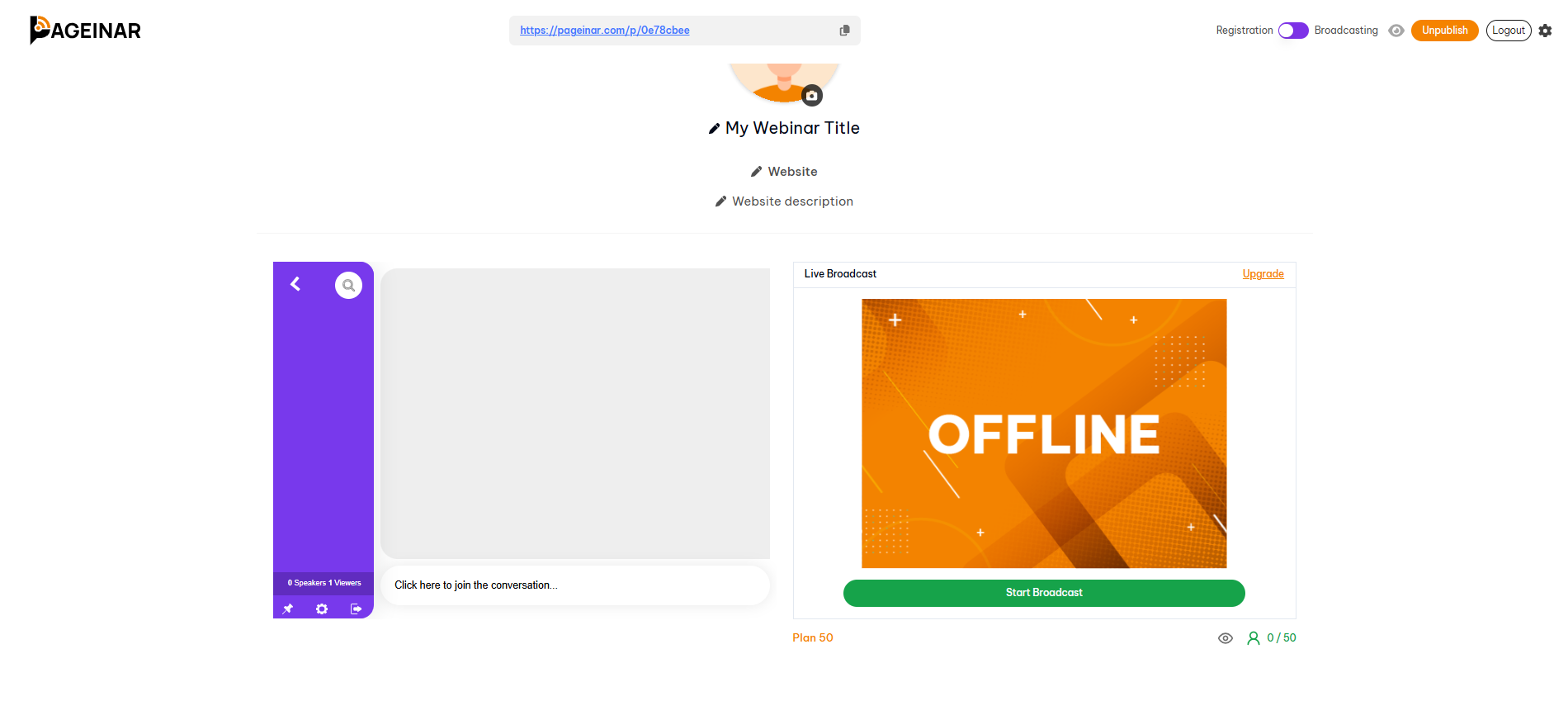
- On your broadcast page, locate the mode toggle in the top-right corner.
- Switch the toggle to Broadcasting Mode.
- In the bottom-right area of the page, you will see the broadcast panel showing OFFLINE status.
- Click the Start Broadcast button to go live. The status changes to a red LIVE badge.
- Share your page URL with your audience — they open it in any browser and watch your stream immediately.
Tips for a Smooth Live Broadcast
- Set up your page title, cover image, and description before going live so viewers see a polished page when they arrive.
- Use the integrated chat panel on the left to engage with your audience in real time during the broadcast.
- If you want to limit access to invited attendees only, enable page password protection in Settings → Broadcast Settings before sharing your link.
- After your broadcast, your recording will appear automatically in Settings → Broadcast Recordings for export.
Tip: Test your camera and microphone in the browser before clicking Start Broadcast to avoid technical issues at the start of your live event.
Switch your page to Broadcasting Mode using the toggle in the top-right, then click the Start Broadcast button in the bottom-right area of your page. No software installation is required.
No. Pageinar runs entirely in the browser. You do not need to install any streaming software or plugins to start a live broadcast.
Registration Mode shows a sign-up form to collect attendee leads before your event. Broadcasting Mode activates the live video area so you can go live and attendees can watch your stream.
Viewers simply open your Pageinar page URL in any browser. No downloads or plugins are required on the viewer side.
Once you click Start Broadcast, a red LIVE badge appears on your page and the broadcast area shows LIVE status. Viewers on your page will see the live stream immediately.