

How to Refresh the Registration Data in Pageinar
Refreshing your registration data in Pageinar ensures you are viewing the latest sign-ups — click the Refresh button in the Registered List panel to reload the current attendee data.
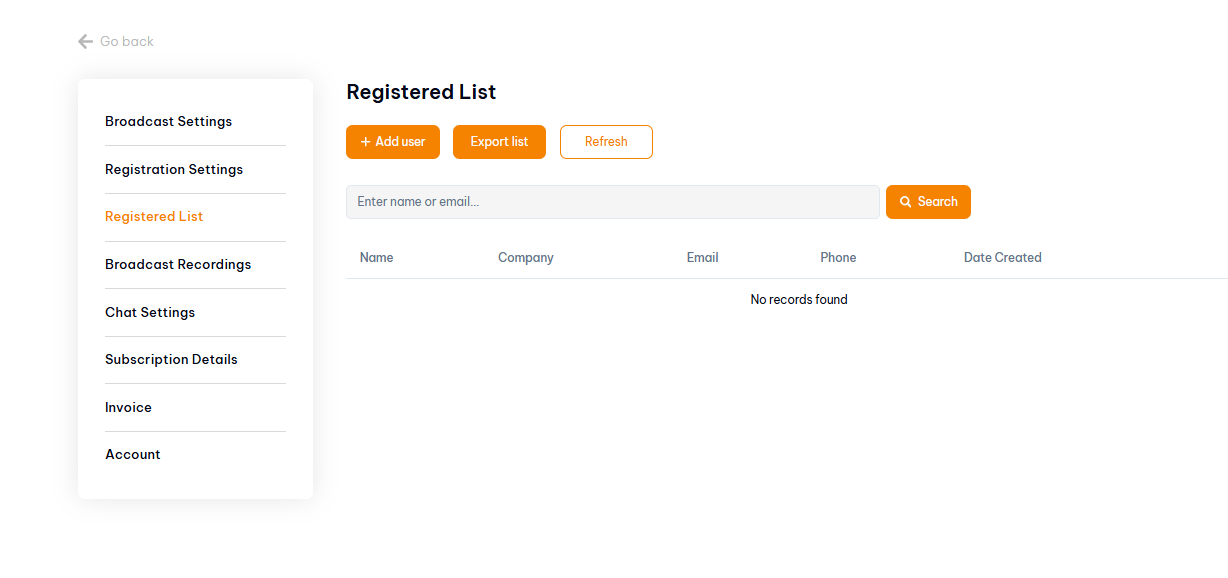
How to Refresh the Registration Data: Step-by-Step
- Log in to pageinar.com.
- Click the gear icon → Registered List.
- Click the Refresh button.
- The list reloads with the latest registrations.
When to Refresh Your Registration Data
- Before exporting the list — always refresh first to capture the most recent sign-ups.
- After sharing your registration link on social media or email — new sign-ups may not appear automatically.
- Before your event — do a final refresh to get an accurate headcount.
- After manually adding a user — refresh to confirm they appear in the list.
Tip: Get in the habit of clicking Refresh before any export or headcount check — it takes one second and guarantees you have the latest data.
Open Settings → Registered List and click the Refresh button to reload the latest attendee data.
The list may not update in real time in your browser. Click Refresh manually to load the latest sign-ups.
Refresh before exporting, before your event, and after any burst of sign-ups from a promotion or social post.
Try a full browser page reload (F5 or Ctrl+R) in addition to clicking Refresh. If the issue persists, contact Pageinar support.
No. Refreshing only reloads the current data from the server. It does not modify or delete any records.