
How to Check Your Attendee Limit in Pageinar
Checking your attendee limit in Pageinar tells you exactly how many viewers can join your broadcast simultaneously — find it in Subscription Details under the No. of Attendees field.
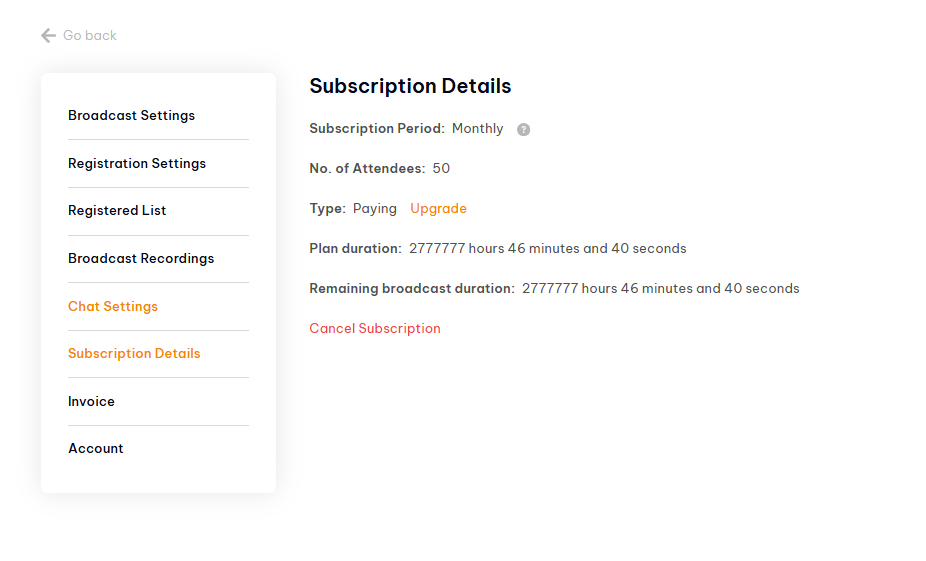
How to Check Your Attendee Limit: Step-by-Step
- Log in to pageinar.com.
- Click the gear icon → Subscription Details.
- Look at the No. of Attendees field.
- This number is your current simultaneous viewer limit.
What to Do If Your Limit Is Too Low
- In Subscription Details, click Upgrade next to your plan type.
- Choose a plan with a higher attendee limit.
- Complete the PayPal payment.
- Your new limit takes effect immediately.
Tip: Check your attendee limit at least a week before a large event so you have time to upgrade if your expected audience exceeds your current plan.
Go to Settings → Subscription Details and check the No. of Attendees field. This shows your current simultaneous viewer limit.
The free plan has a default attendee limit. Check Subscription Details to see your specific limit and available upgrade options.
In Subscription Details, click Upgrade and choose a plan with a higher attendee limit. Payment is processed via PayPal.
The limit applies to simultaneous live viewers during a broadcast, not to the number of people who registered.
You can upgrade your plan at any time and cancel after the event if you no longer need the higher limit.